結論先講
很多前端工程師對 <form> 的第一反應是:
<form onSubmit={(e) => { e.preventDefault(); handleSubmit(); }}>然後用 React state 管每個欄位、用 Zod 做驗證、用 fetch 送出——把瀏覽器原生內建的表單行為全部關掉再重做一遍。
有時候這是必要的(SPA、複雜驗證),但多數情況是你不知道 <form> 原生做了什麼。瀏覽器替你做了:
- 必填驗證(
required) - 格式驗證(
type="email"、pattern) - 鍵盤 submit(Enter)
- 無障礙(鍵盤 tab 順序、screen reader 播報)
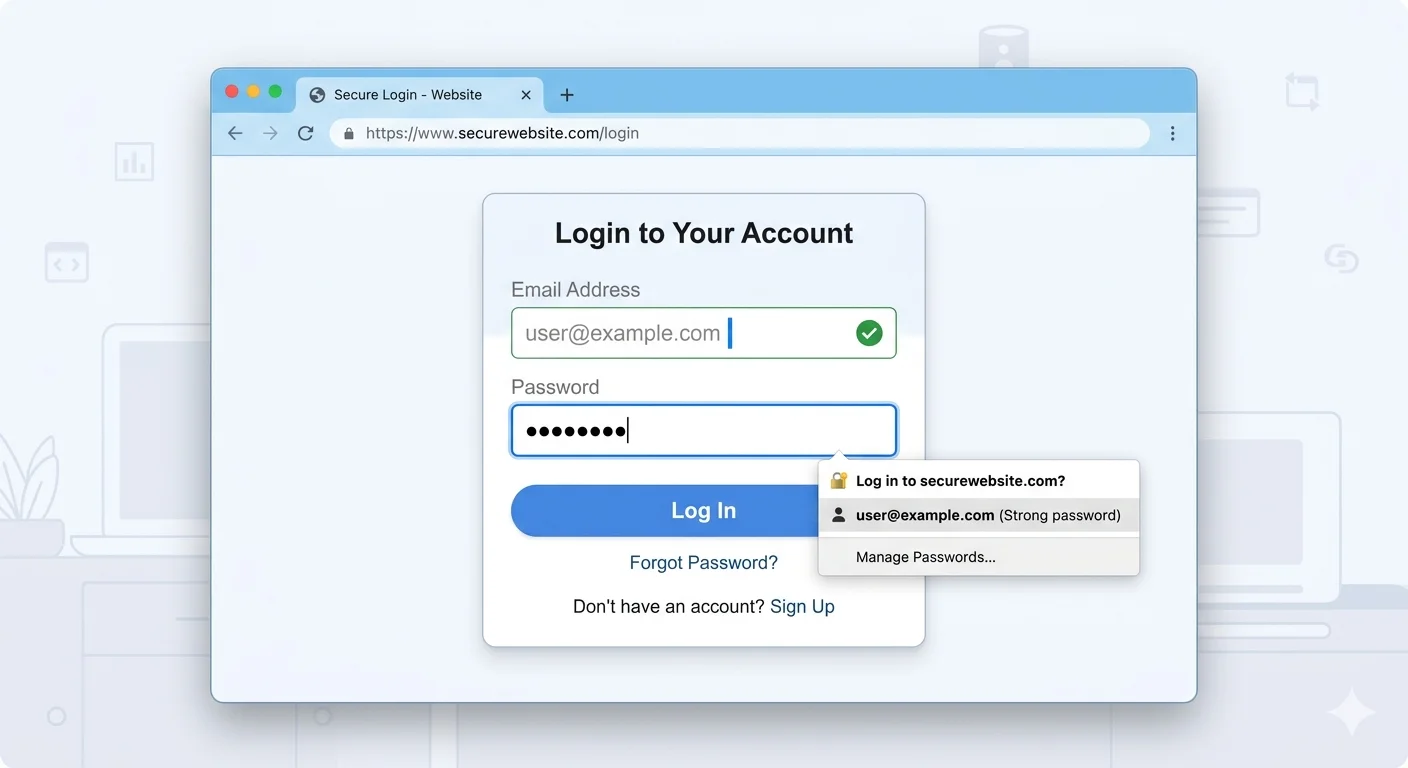
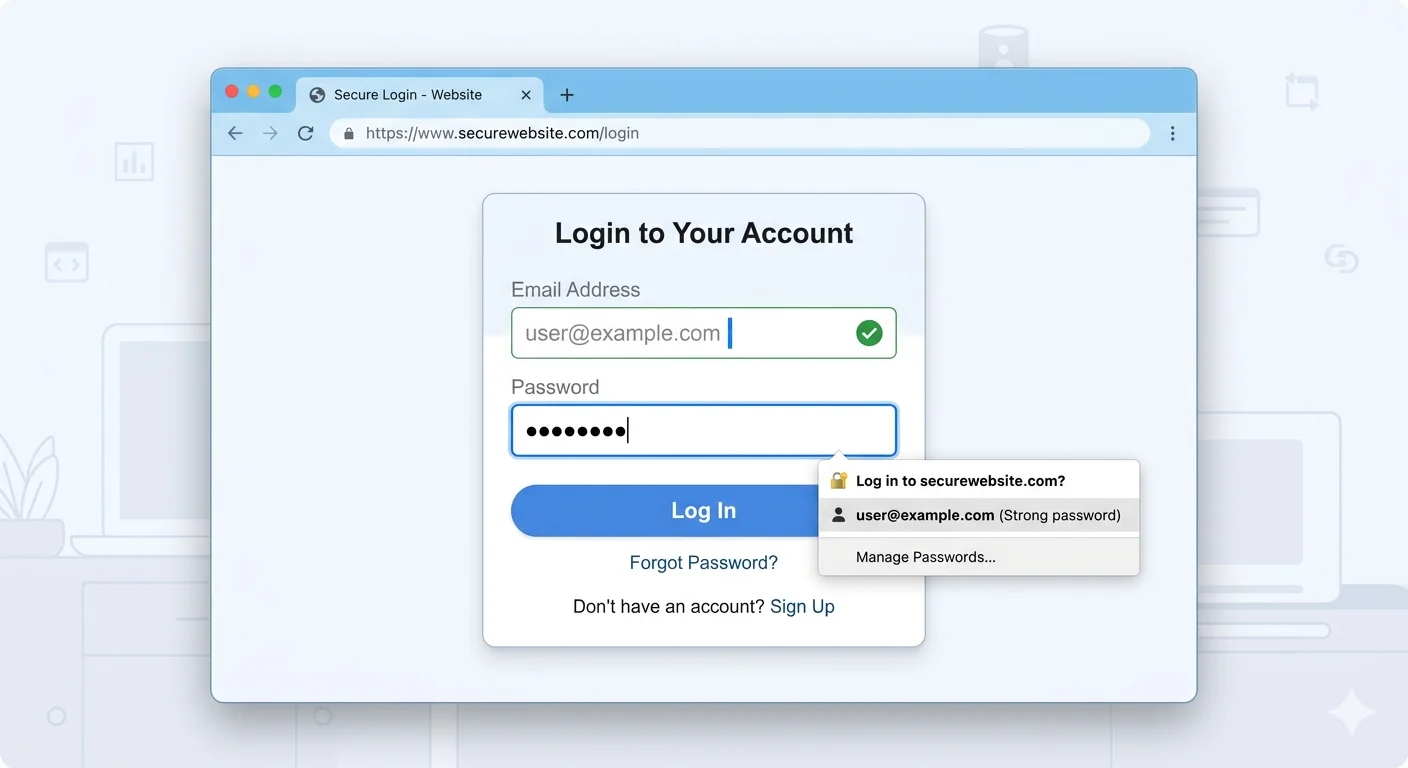
- 密碼管理器整合(autofill、記住密碼)
- 行動裝置鍵盤切換(數字鍵盤 vs 文字鍵盤)
這些東西你自己刻會花時間還不一定做對。這篇拆解原生 <form> 能做什麼、什麼時候關掉、什麼時候留著。
<form> 原生做什麼(不 preventDefault 時)
一個沒有 JS 的 <form>:
<form action="/api/submit" method="POST">
  <label>Email <input type="email" name="email" required></label>
  <label>Message <textarea name="message" required></textarea></label>
  <button type="submit">送出</button>
</form>
使用者按送出後瀏覽器會:
- 驗證所有必填、格式(required、type=“email”)
- 驗證失敗 → 顯示原生錯誤訊息(
:invalidCSS 可 style) - 驗證成功 → 把欄位打包成
application/x-www-form-urlencoded或multipart/form-data - 用
method指定的方法送到action網址 - 等回應 → 導向回應頁面
這整套不用寫任何 JavaScript。2005 年的網頁就是這樣跑的。
現代 SPA 不用這模式不是因為它不好,是因為:
- SPA 不想讓頁面跳轉
- 回應通常是 JSON 不是 HTML
- 複雜表單需要即時驗證
但原生行為可以部分保留。
善用 type 屬性(免費賺很多功能)
<input type="text"> 永遠不是最佳解。對每個欄位用對的 type:
type | 行為 | 手機鍵盤 |
|---|---|---|
email | 驗證 email 格式 | 有 @ 鍵 |
tel | 不驗格式但是電話 | 數字鍵盤 |
number | 只接受數字 | 數字鍵盤 |
url | 驗證 URL 格式 | 有 / 鍵 |
date | 日期選擇器 | 日期輪盤 |
datetime-local | 日期 + 時間 | 日期時間輪盤 |
time | 時間選擇器 | 時間輪盤 |
search | 搜尋欄(有清除 X 按鈕) | 有 Enter 鍵改「搜尋」 |
password | 遮罩文字 | 一般鍵盤 |
color | 顏色選擇器 | — |
range | 滑桿 | — |
file | 檔案選擇器 | — |
實戰建議:行動裝置使用者超多,用對 type 免費省掉使用者切換鍵盤的困擾。
常見誤用
❌ 信用卡號用 type="number":number 會把前導 0 吃掉、有上下箭頭、複製貼上會失敗。應該用 type="text" inputmode="numeric" pattern="\d*"。
❌ 電話用 type="number":同上。用 type="tel"。
驗證屬性(瀏覽器內建驗證)
不用 JS,HTML 就能做這些驗證:
| 屬性 | 用途 | 範例 |
|---|---|---|
required | 必填 | <input required> |
minlength / maxlength | 文字長度 | <input minlength="8"> |
min / max | 數字/日期範圍 | <input type="number" min="0" max="100"> |
pattern | Regex 驗證 | <input pattern="[A-Za-z]{3,}"> |
step | 數字遞增單位 | <input type="number" step="0.01"> |
自訂錯誤訊息
原生錯誤訊息是瀏覽器語系決定的,想客製化用 title + JS:
<input pattern="\d{10}" title="請輸入 10 位數字">或用 setCustomValidity():
input.setCustomValidity('統編要 8 碼');CSS :invalid / :valid 偽類
input:invalid {
  border-color: red;
}
input:invalid:not(:focus):not(:placeholder-shown) {
  /* 聚焦時不顯示紅框 + 用戶還沒輸入時也不顯示 */
}
這段 CSS 做出「使用者輸入過才驗證、失焦才顯示錯誤」的體驗,不用一行 JS。
autocomplete 別亂關
很多表單會寫 <input autocomplete="off"> 以為這是「隱私考量」。實際上這會傷害使用者體驗跟密碼管理器。
什麼時候該關
- 一次性驗證碼(OTP)—
autocomplete="one-time-code"比off更好 - 隨機生成 token 或密鑰
- 搜尋欄(搜尋欄 autocomplete 有不同語意)
什麼時候該精確指定
大多數時候用 autocomplete="xxx" 指定欄位性質,幫瀏覽器 / 密碼管理器自動填:
<!-- 註冊 -->
<input type="email" autocomplete="email">
<input type="password" autocomplete="new-password">

<!-- 登入 -->
<input type="email" autocomplete="username">
<input type="password" autocomplete="current-password">

<!-- 信用卡 -->
<input autocomplete="cc-number">
<input autocomplete="cc-exp">
<input autocomplete="cc-csc">

<!-- 地址 -->
<input autocomplete="street-address">
<input autocomplete="postal-code">
<input autocomplete="country">規範完整清單:HTML spec autocomplete
File Upload 進階
<input
  type="file"
  accept="image/png, image/jpeg"
  multiple
  capture="environment"
>accept— 只接受特定 MIME type(使用者介面會過濾)multiple— 允許選多個capture="environment"— 手機直接開後鏡頭("user"是前鏡頭)capture="camera"— 相機模式
顯示預覽
const file = input.files[0];
const url = URL.createObjectURL(file);
preview.src = url;
// 記得在不用的時候 URL.revokeObjectURL(url);
<fieldset> + <legend> 分組
相關欄位用 <fieldset> 包起來,<legend> 當分組標題:
<fieldset>
  <legend>收件人資訊</legend>
  <label>姓名 <input name="name"></label>
  <label>電話 <input type="tel" name="phone"></label>
</fieldset>

<fieldset>
  <legend>配送地址</legend>
  <label>郵遞區號 <input name="zip"></label>
  <label>地址 <input name="address"></label>
</fieldset>
Radio buttons 必須用 <fieldset> 包起來(a11y 規範):
<fieldset>
  <legend>付款方式</legend>
  <label><input type="radio" name="pay" value="cash"> 現金</label>
  <label><input type="radio" name="pay" value="credit"> 信用卡</label>
</fieldset>
SPA 該怎麼用 <form>
雖然不讓頁面跳轉,但不要整個放棄 <form> 標籤。正確做法:
<form onSubmit={handleSubmit}>
  <input type="email" required />
  <button type="submit">送出</button>
</form>

function handleSubmit(e) {
  e.preventDefault();
  // 保留原生驗證 + JS 處理送出
  const data = new FormData(e.target);
  fetch('/api/submit', { method: 'POST', body: data });
}
為什麼保留 <form>:
- Enter 鍵自動 submit(鍵盤無障礙)
- 原生驗證(required、pattern)會先跑
- 密碼管理器知道這是登入/註冊表單
- Screen reader 播報「表單開始」/「表單結束」
- 測試工具能用
form.submit()觸發
不要用 <button onClick> 取代 <form onSubmit>
❌ 壞:
<input />
<button onClick={submit}>送出</button>
這樣按 Enter 不會送出,也繞過原生驗證。
✅ 好:
<form onSubmit={submit}>
  <input required />
  <button type="submit">送出</button>
</form>
實戰 Checklist
- 每個
<input>都有對應的<label>(for或包起來) - 用對
type(email、tel、url、number、date) - 用了
autocomplete(指定性質而非 off) - 必填用
required,不要用 JS 取代 - 密碼欄用
autocomplete="new-password"或"current-password" - Radio/Checkbox 分組用
<fieldset>+<legend> - 提交按鈕是
<button type="submit">在<form>裡 - SPA 仍用
<form onSubmit>,不用<button onClick>取代 - 行動裝置測試過鍵盤切換正確
相關文章
- HTML 語意化標籤 — 包含
<label>語意 - HTML 子 Roadmap
- Frontend Roadmap